How to take deposits and card payments
Deposits protect your time: clients pay when they book, and unpaid slots open up again by themselves. This guide shows you how to add your bank details, switch deposits on, and (if you want) let clients pay by card or Instant EFT through PayFast. It takes about 10 minutes. **Available on the Pro and Studio plans.**
Add your bank details
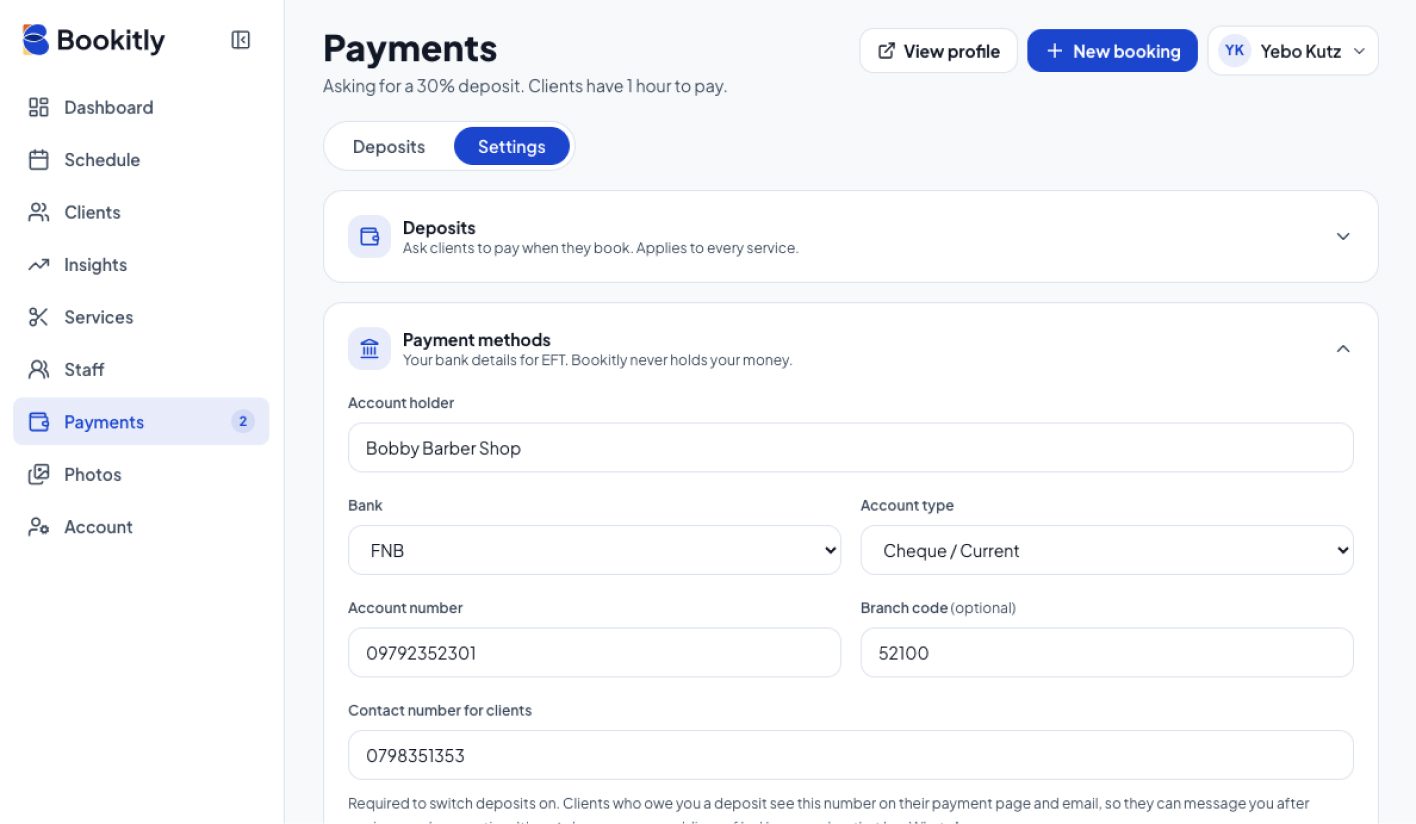
Fill in:
- Account holder
- Bank
- Account type
- Account number
- Branch code (optional)
- Contact number for clients
Where to find it: Payments → Settings tab → Payment methods
Choose your deposit and switch it on
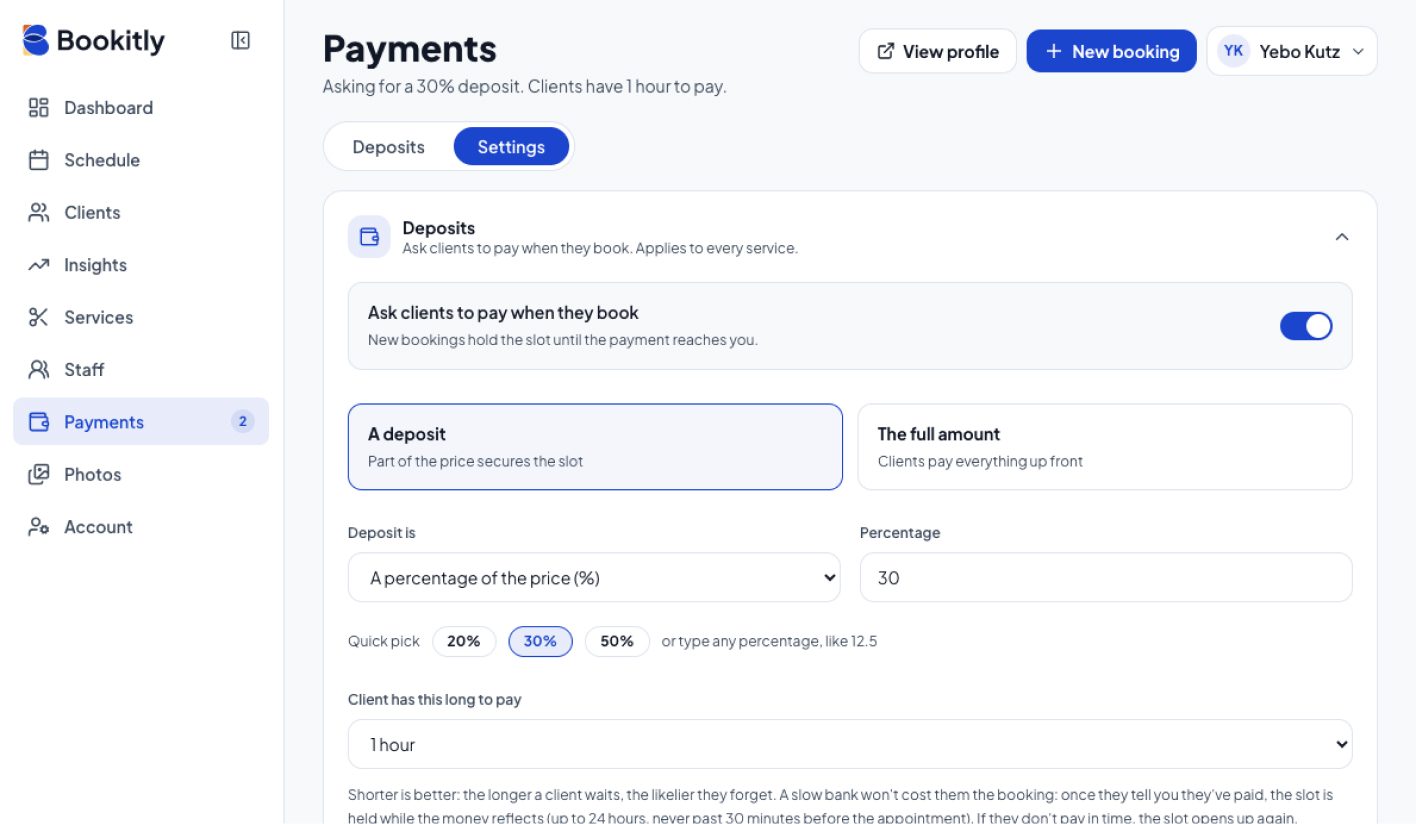
- Switch on Ask clients to pay when they book
- Choose A deposit (a fixed amount or a percentage) or The full amount
- Set how long a client has to pay, shorter is better
- Add a cancellation policy, start from a template; clients must tick a box to agree before they can book
- Click Save
Where to find it: Payments → Settings → Deposits
Let clients pay by card with PayFast (optional)
You'll need your own PayFast account, free to open at payfast.io.
- In PayFast (on a browser), go to Settings → Integration. Copy your Merchant ID and Merchant Key, and set a Security Passphrase.
- In Bookitly, go to Payments → Settings → Card payments (PayFast). Enter all three, switch on Let clients pay by card or Instant EFT, and Save.
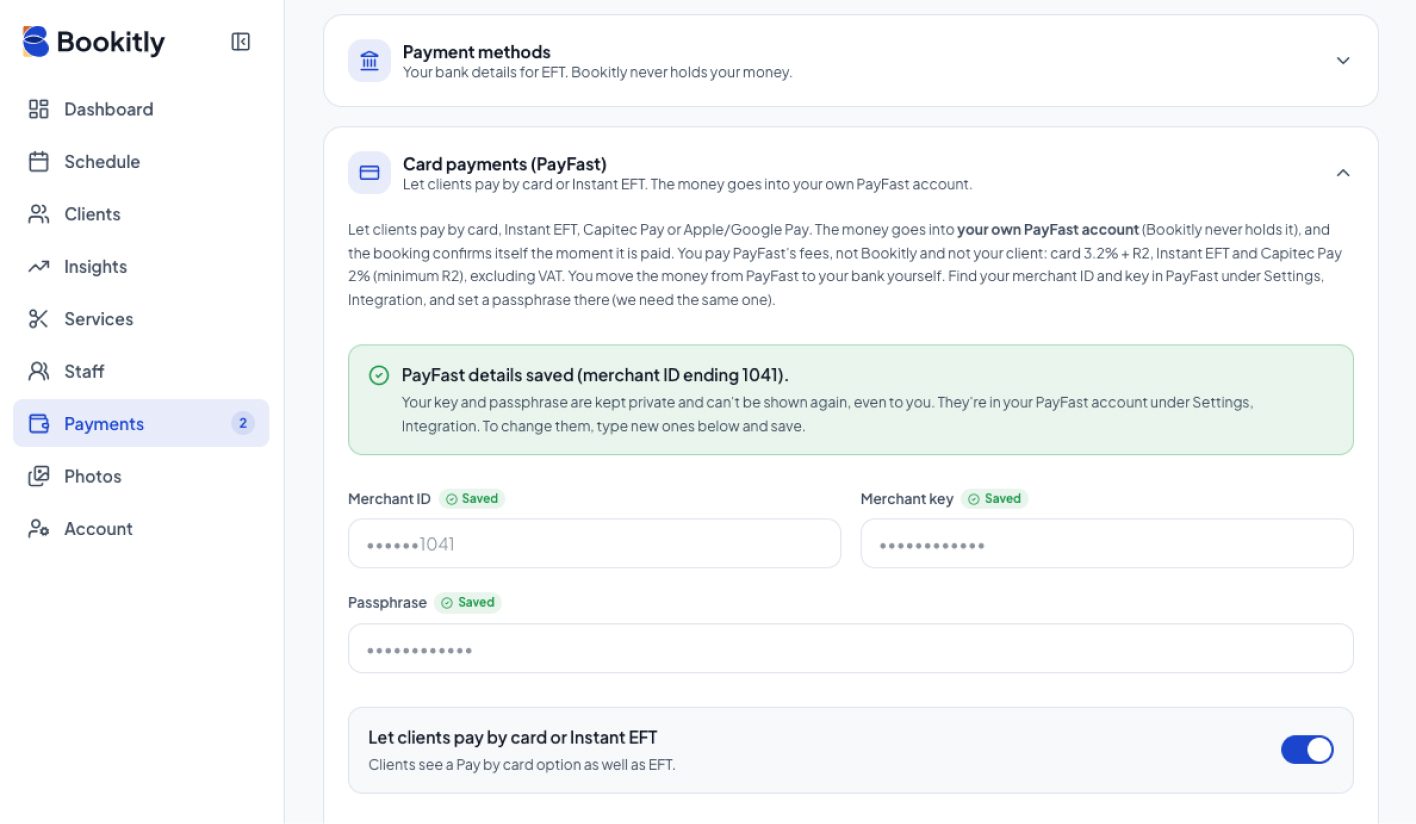
Tip: Make a test booking with a deposit of R10 or more to see it work end to end.
What happens when a client books
The client sees how to pay, and the slot is held for the time you set.
- Card: their booking confirms automatically, and they get an email or SMS confirmation.
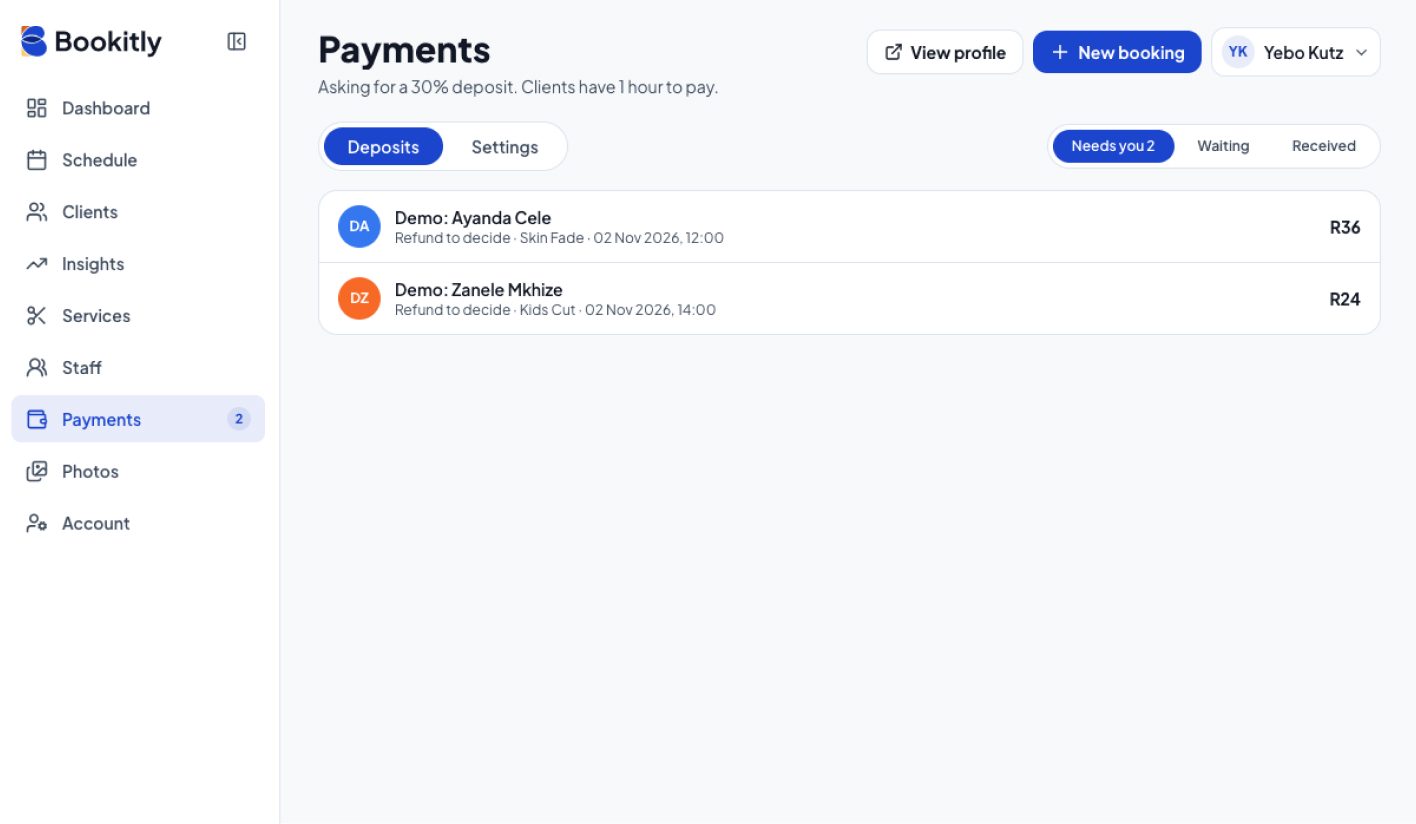
- EFT: they pay and tap "I've paid", and you get a notification. Open your own banking app and look for the amount and reference. Only once it has cleared, go to Payments → Needs you, click the client, and click Mark received.
If the client doesn't pay in time, the slot opens up again automatically.
Refunds and cancellations
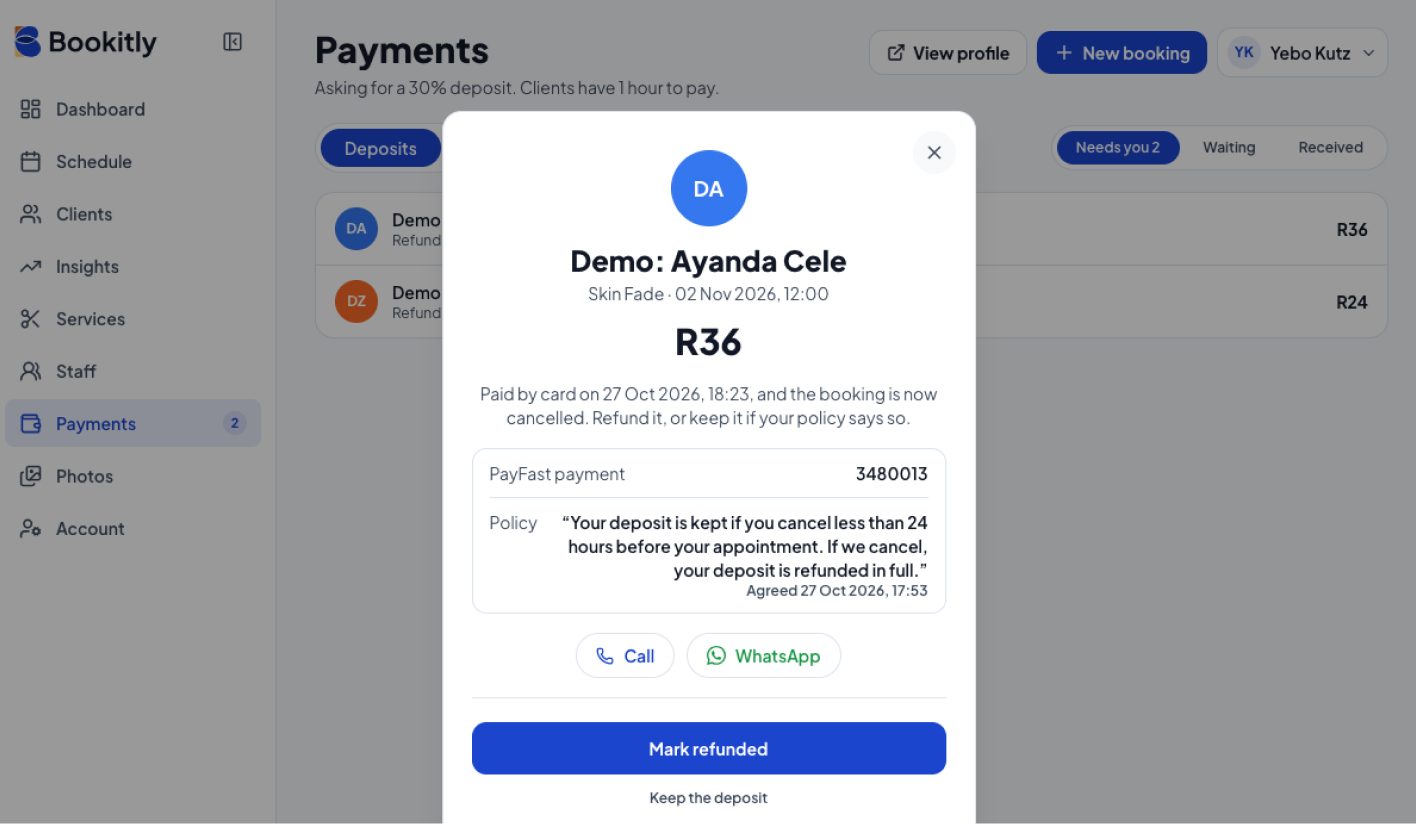
If a booking with a paid deposit is cancelled, it appears under Payments → Needs you as "Refund to decide".
- Refund it yourself from your bank (EFT) or your PayFast account (card), then click Mark refunded
- Or, if your cancellation policy allows you to keep it, click Keep the deposit